 Aplas Docs
Publishing a view
Giving a view a URL, for the members of your organization
Publishing makes a view available at its own URL to the members of your organization — all of them, or the ones you name. It is a property of the view, not a separate kind of thing you build.
This is worth stating plainly because it used to work the other way round: you no longer publish something in order to look at it. Every view renders in the studio as soon as you open it. Publishing is the separate, optional act of letting other people see it.
Publishing a view
Publish appears on every view — on the view itself, and on the card for each map in Maps.
The publish card asks for one thing and tells you another:
URL. The address the view will live at, under your organization:
aplas.com/your-org/coverage_matrixThe slug is yours to choose and can be changed later.
Audience. Org members only. People sign in to open a publication, and membership of your organization is what lets them in. There is no wider setting to choose: a publication you create today never opens to someone outside your organization, whoever forwards them the link. Publications made before the wider setting was retired are the one exception — see A note on older publications.
Until a view is published, the card says so: Not published — only studio members can open this view. "Studio members" means the people in your organization who have access to the studio itself — Owner, Admin and Author. Viewers do not, which is precisely why publishing exists. See Users and roles for what each role can reach.
Publishing a Default view makes it a view of your own — the default library is a starting point, and acting on one of its entries makes it real.
Who can open a publication
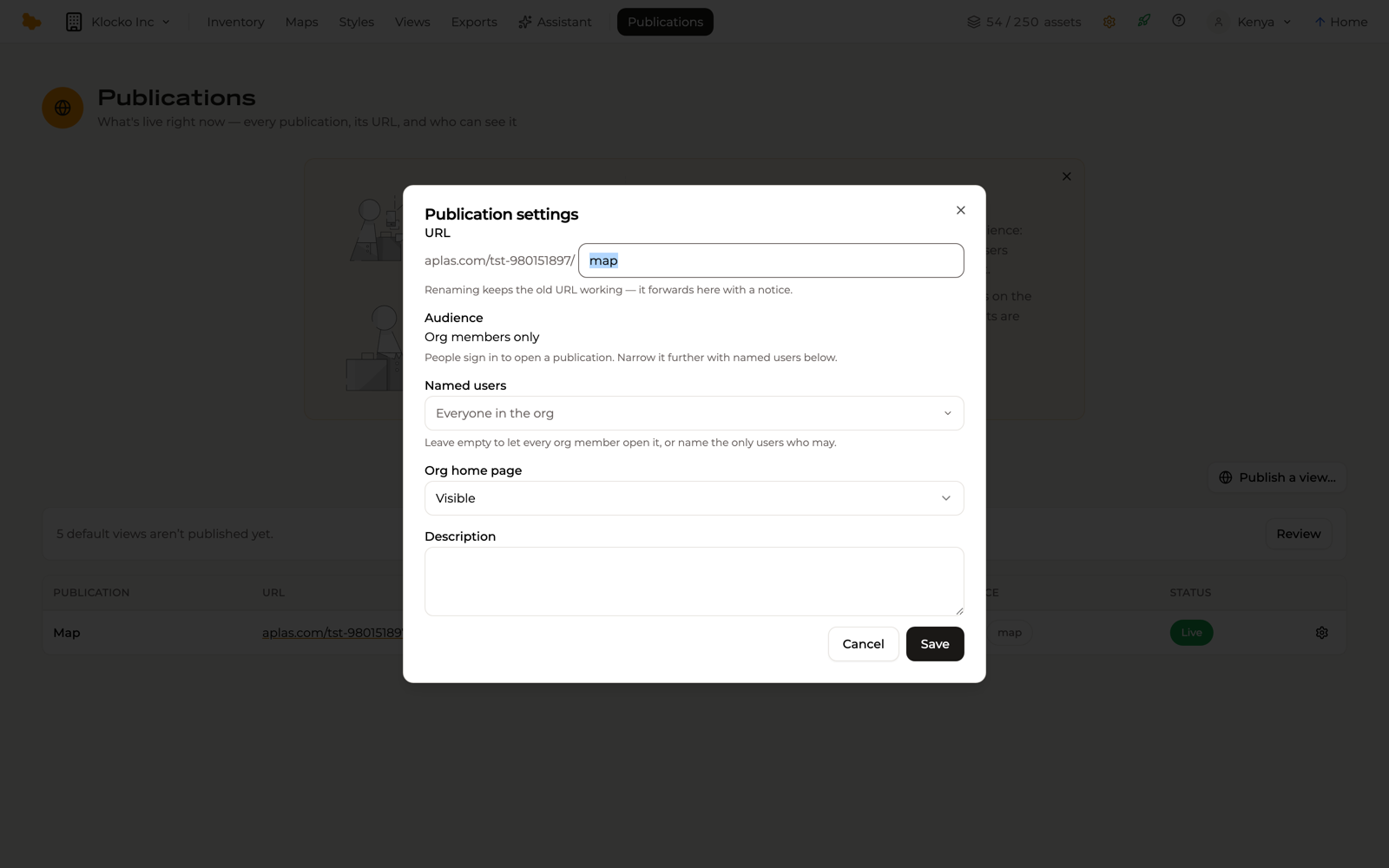
Everyone in your organization can open a publication by default. Each publication's settings carry Named users — leave it empty to let every org member open it, or name the only users who may.
Naming users narrows the Viewers: a Viewer not on the list gets nothing at the URL. Owners, Admins and Authors can always open every publication, because they can already open the view itself in the studio.
The link behaves differently depending on who follows it. Someone not signed in is asked to sign in first. Someone signed in who is not a member of your organization is offered the way to request access. A member the publication has not been opened to — a Viewer left off its named users — sees the same Not Found page a wrong address would give, because saying more would confirm that the publication exists. If a colleague reports a dead link, check that they are a member and, where the publication is narrowed, that they are named.
That gate is enforced on our side, before any of the view's data leaves the server — not merely hidden in the interface.
What a viewer gets
A published view is read-only. Viewers can explore it — search it, move around it, open an asset to see its detail — but nothing they do writes back to your inventory. That is enforced on our side too.
The publication also pins its presentation. A published view keeps the style it was published with, so changing a style in the studio never moves a live URL underneath its audience. When you want the audience to see your new version, republish.
Publications
Publications in the studio nav is the governance list — what is live right now, at what URL, and who can see it. It is organization-wide, so it covers every workspace.
Each row names the publication, its URL, its audience, the view it comes from and its type, and its status:
PUBLICATION        URL                                  AUDIENCE                       SOURCE                    STATUS
Coverage matrix    aplas.com/your-org/coverage_matrix   Org members                    Coverage matrix (matrix)  Live
Vendor risk        aplas.com/your-org/vendor_risk       Org members · 3 named users    Vendor risk (table)       Live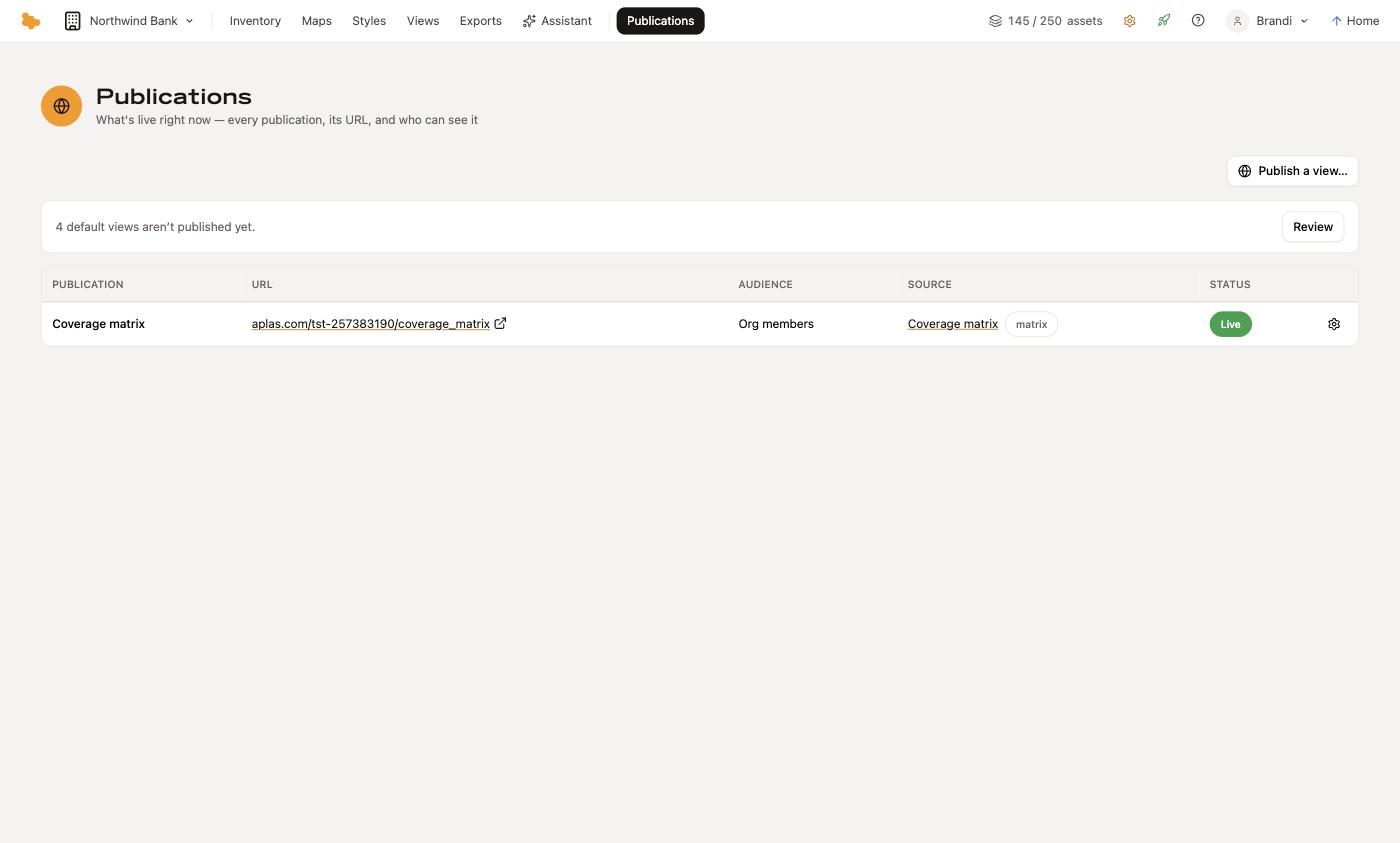
The URL is a live link, so you can check what your audience sees. The settings icon on each row opens the publication's settings:
- URL — rename the address. The old one keeps working and forwards to the new one with a notice, so a link already sent does not break
- Named users — narrow the audience, as above
- Org home page — whether the publication is listed on your organization's home page: Visible, Visible & featured or Hidden
- Description — a line for the home page listing
Turning a publication off and on, and archiving it, happen on the view's own publish card: each publication listed there has a switch, and Archive publication removes it after a confirmation. Off reads as Off in the Status column; archived publications leave the list.
Publish a view… starts from this end instead — pick a view and publish it without navigating to it first. If some of your default views have never been published, the page says so and offers to review them.
Choosing what to publish
A published view is the thing most of your organization will ever see of Aplas, so it is worth being deliberate:
- publish the view, not the whole inventory — a view scoped to one question is easier to read than everything at once
- leave Named users empty unless the view really is for a few people; a publication everyone can open is one fewer thing to administer
- give it a slug someone can say out loud
- remember that the publication pins its style, so tidy the style before publishing rather than after
A note on older publications
The studio once offered a second, wider audience. It no longer does. A publication created with it shows Public — a legacy setting the studio no longer offers in its settings and is left exactly as it is when you save; who can actually open it follows your organization's plan. Publish the view again to get an ordinary, org-members publication at a new address.