 Aplas Docs
Relationship types
The registry of verbs your assets connect with — naming, describing and colouring them
Every relation in Aplas carries a relationship type: the verb that says what the connection means. "Orders depends on Inventory" is a relation whose type is depends on; read from the other end it is depended on by. The type is what the Relations tab groups by, what the graph and the Flow view colour by, and what a map view's Relations layer lets you scope to.
A workspace keeps its relationship types in one registry, and this page is about that registry: what it starts with, how to add to it, and where the choices you make there show up.
Opening the registry
In Inventory, the workspace name in the bar is a menu — click it and choose Relationship types…. The page lists every type in the workspace, alphabetically, with its colour swatch, its name and slug, its reverse name and its description.
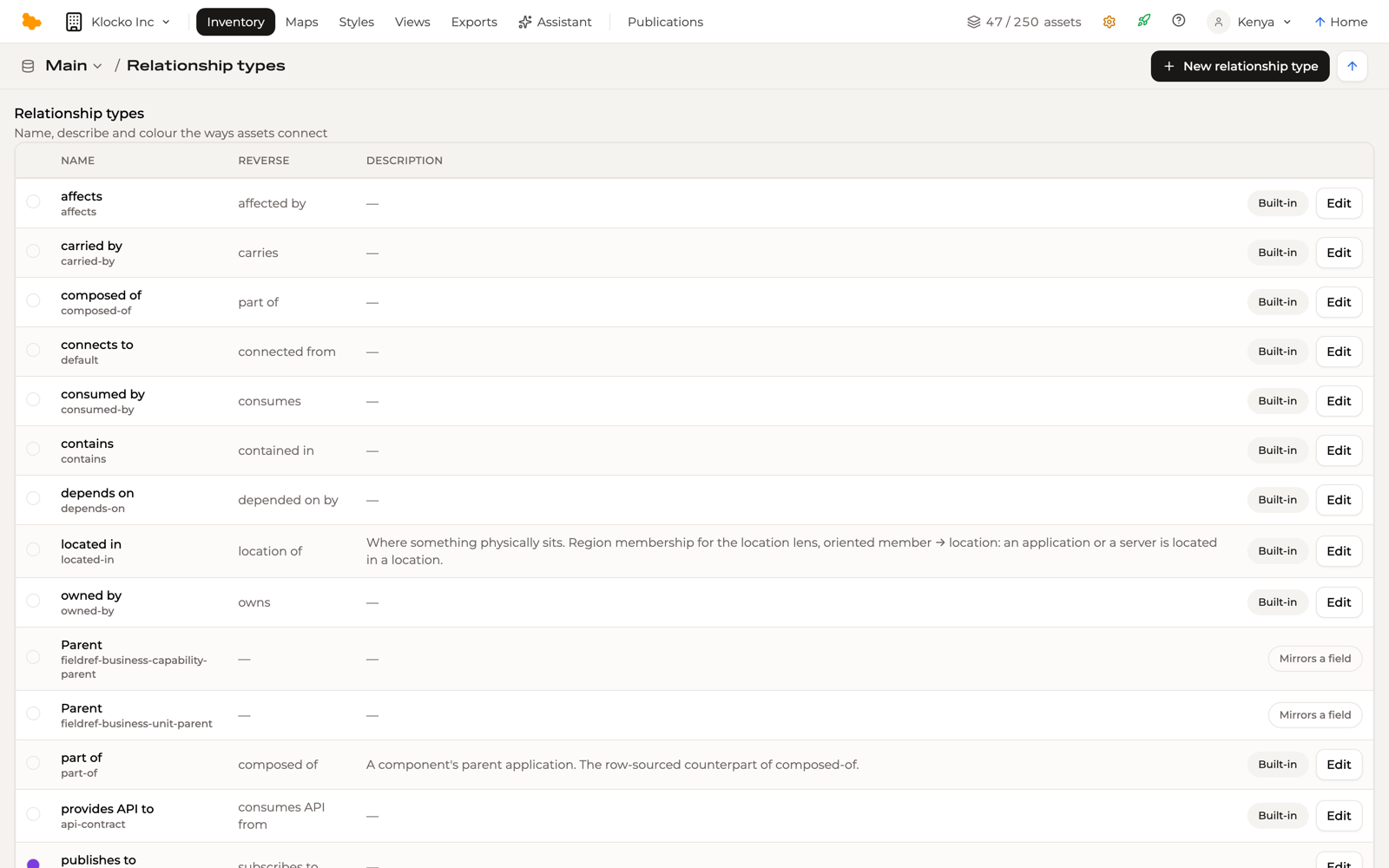
The up arrow beside New relationship type — Back to inventory — returns you to the grid.
What a workspace starts with
The standard template seeds eighteen types, each badged Built-in. They cover the connections an estate is usually described with:
| Type | Read backwards |
|---|---|
| connects to | connected from |
| depends on | depended on by |
| sends data to | receives data from |
| provides API to | consumes API from |
| runs on | hosts |
| contains | contained in |
| composed of | part of |
| part of | composed of |
| tagged with | tags |
| owned by | owns |
| realizes | realized by |
| supported by | supports |
| affects | affected by |
| consumed by | consumes |
| carried by | carries |
| stores in | stores |
| located in | location of |
| supplies | supplied by |
Built-in types are yours to edit like any other — rename depends on to the verb your organization actually uses, describe it, give it a colour. Only the slug is fixed.
The generic default
connects to / connected from is the type a connection falls back to when nothing names one. Wherever the studio asks for a relationship type and lets you leave the question open — a connectivity type's settings, a step in a composition — the empty choice reads Unspecified — the generic default, and that is the type it means.
Creating a type
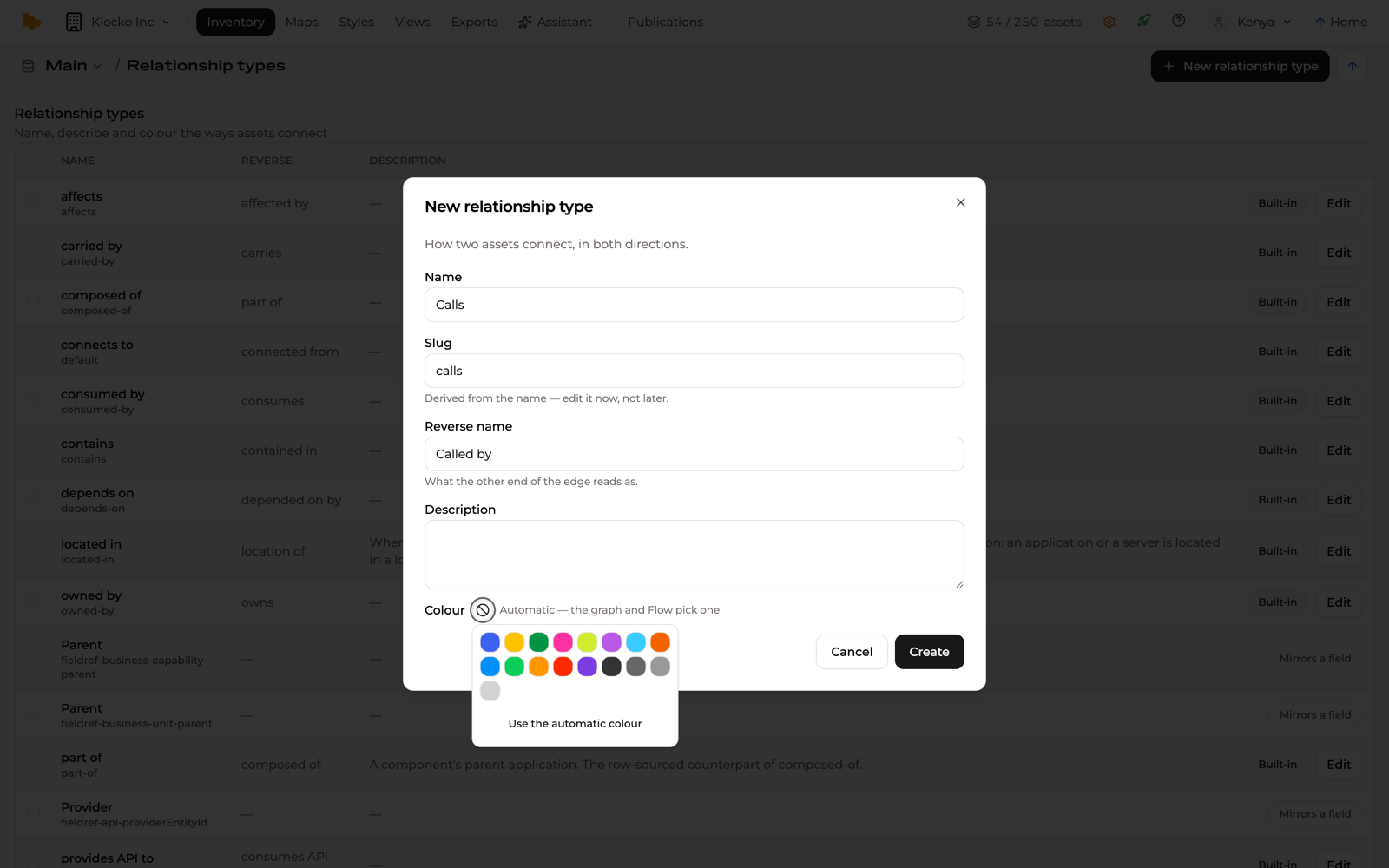
New relationship type in the bar asks for:
- Name — the verb read from the source, such as Calls
- Slug — derived from the name as you type. Edit it now if you want to; it is fixed once the type is created, because every stored relation references it
- Reverse name — what the other end of the connection reads as, such as Called by. Leave it empty and the registry shows a dash in its place
- Description — what the verb means in your estate, shown in the registry
- Colour — a swatch from the palette, or Automatic — the graph and Flow pick one
Create adds it, and it is offered immediately wherever a relationship type is chosen: the Relations tab's add-relation dialog, a connectivity type's default, a composition step.
Renaming and recolouring
Edit on a row opens the same dialog with the slug frozen. Change the name, the reverse name, the description or the colour and Save — every relation of that type reads the new words at once, because relations reference the type rather than copying its name.
The registry has no delete. A stored relation references its type, so a type stays once created; if one has outlived its use, rename it or stop choosing it.
Types that mirror a field
Some rows carry Mirrors a field instead of an Edit button. These are the relation fields on your asset types — an API's Provider, a business unit's Parent — appearing in the registry so that the graph, the Flow and the map can draw them alongside the relations you add by hand. One appears the first time a record fills the field, named after it. To rename one, rename the field in the type's settings; the registry follows.
Colour
A relationship type's colour is what tells one kind of connection from another at a glance. It shows:
- on the graph, as the colour of every edge of that type, with the legend naming the types on show
- on the Flow view, as the colour of its ribbons — unless the view is set to Colour by a field instead, when the field's option colours take over
- on a connectivity record's Composition tab, colouring each step by its verb in the diagrams
Elsewhere the type is named rather than painted: the Relations tab and a map road's inspector show the verb in words.
Automatic means the view picks a colour from a fixed palette by the type's position among the types on its canvas — stable while that set stays the same, and liable to shift when a type appears or disappears. Give the types you rely on their own colour and they stay the same in every view, whatever else appears beside them.
Relationship types on connectivity assets
A connectivity asset — an Integration, or any type of your own that connects a source to a target — draws its records as relations, and those relations need a verb too. It comes from two places:
- The type's default. In the type's settings, the Connectivity asset section carries a Relationship type — what every record of this type means when the record itself does not say
- The record's own field. The built-in Integration carries a Relationship Type field that points at this registry rather than at other assets. Fill it on a record and that record's edges read as that verb, whatever the type's default says
Which one to reach for is a modelling choice: a type whose records all mean the same thing sets it once, at the type; a type whose records mean different things — one integration sends data, another provides an API — leaves the type's default alone and fills the field per record. The field editor calls the setting that makes such a field Points at → Relationship types (registry), and you can add one to a connectivity type of your own.